Introduction
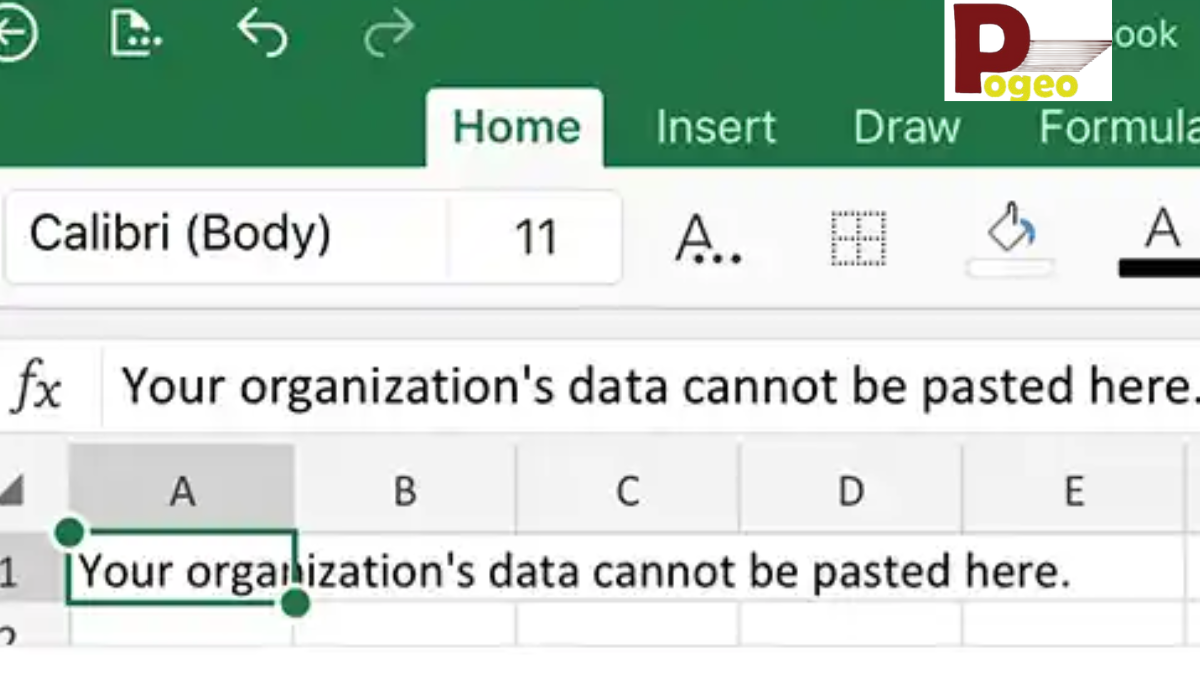
The error message Your Organization’s Data Cannot Be Pasted Here is increasingly common in modern workplaces that rely on Microsoft 365 and cloud-based security systems. It usually appears when users try to copy and paste data between work-managed applications and personal or unapproved apps. While frustrating, this message is not a software bug but a security control designed to protect sensitive organizational information.
In most cases, this restriction is enforced by Microsoft Intune and Data Loss Prevention policies configured by an organization’s IT administrators. These systems ensure that confidential business data does not leak outside approved environments. When users encounter Your Organization’s Data Cannot Be Pasted Here, it simply means the system has blocked the clipboard action for compliance reasons rather than technical failure.
Understanding this issue is essential for employees, IT professionals, and remote workers who regularly switch between multiple apps and devices. This guide explains everything from causes to solutions in a structured and practical way so users can resolve or manage the issue efficiently while maintaining compliance with organizational security rules.
What Does “Your Organization’s Data Cannot Be Pasted Here” Mean?
The message Your Organization’s Data Cannot Be Pasted Here refers to a security restriction applied by Microsoft Intune or similar enterprise management tools. It appears when a user attempts to move data from a protected work application to an unprotected or personal environment. This ensures that sensitive data remains within approved company boundaries.
In simple terms, the system is preventing clipboard sharing between managed and unmanaged apps. For example, copying text from Microsoft Outlook and pasting it into WhatsApp or a personal email account may trigger this restriction. The goal is to reduce accidental or intentional data leaks that could compromise company security or violate compliance policies.
This message is not an error in the traditional sense but rather a protective barrier. Organizations configure these settings to meet regulatory requirements, especially in industries like finance, healthcare, and corporate enterprises. When users see Your Organization’s Data Cannot Be Pasted Here, they are interacting with a deliberate security framework rather than a malfunctioning system.
Causes of the Error
One of the primary reasons users encounter Your Organization’s Data Cannot Be Pasted Here is the enforcement of Microsoft Intune App Protection Policies. These policies define how data can be shared between applications and devices. When restrictions are enabled, clipboard actions between work and personal apps are automatically blocked.
Another major cause is Data Loss Prevention rules configured within Microsoft 365. These rules are designed to prevent sensitive information such as financial records, customer data, or internal documents from being copied into unauthorized environments. This ensures compliance with data protection laws and internal governance policies.
A third cause is device management status. If a device is not enrolled in an organization’s management system or is partially compliant, clipboard actions may be restricted. Additionally, users may face this issue when switching between managed work accounts and personal apps on the same device, which triggers security boundaries.
In some cases, system-level features like clipboard synchronization or cross-device sharing may also contribute to the issue. When combined with strict enterprise policies, these settings create an environment where Your Organization’s Data Cannot Be Pasted Here appears frequently.

How Microsoft Intune Controls Clipboard Access
Microsoft Intune plays a central role in enforcing clipboard restrictions across managed environments. It allows organizations to define strict rules about how data is copied, stored, and shared between applications. These controls are part of a broader mobile device management strategy used in modern enterprises.
Intune works by categorizing apps into managed and unmanaged groups. Managed apps are approved corporate tools such as Microsoft Teams, Outlook, and Word, while unmanaged apps include personal or third-party applications. When a user attempts to move data between these categories, Intune evaluates the action and may block it to prevent data leakage.
These restrictions are often combined with Data Loss Prevention policies that scan for sensitive content. If the system detects that the information being copied is confidential, it automatically triggers the Your Organization’s Data Cannot Be Pasted Here message. This ensures that organizations maintain full control over corporate data, even on employee-owned devices.
Basic Troubleshooting Steps
When users encounter Your Organization’s Data Cannot Be Pasted Here, there are several basic troubleshooting steps that can help resolve the issue. One of the simplest methods is restarting Microsoft Office applications or the device itself. Temporary glitches or session-based restrictions can often be cleared through a restart.
Another effective solution is updating Microsoft 365 applications. Outdated versions may not properly sync with the latest security policies, leading to clipboard restrictions. Ensuring all apps are updated helps maintain compatibility with organizational settings and reduces unnecessary errors.
Users should also verify whether they are using approved applications. Copying data from a managed app to an unauthorized platform is the most common trigger for this message. Switching to web-based versions of Microsoft tools can sometimes bypass local restrictions while still maintaining compliance.
In some cases, signing out and signing back into work accounts can refresh policy enforcement. This helps the system re-establish correct permissions and may resolve temporary conflicts causing Your Organization’s Data Cannot Be Pasted Here to appear unexpectedly.
Advanced IT Administrator Fixes
For IT administrators, resolving Your Organization’s Data Cannot Be Pasted Here often involves adjusting Microsoft Intune configurations. The App Protection Policies section allows administrators to modify clipboard transfer settings between managed and unmanaged apps. Changing these settings can help balance security with usability.
Another advanced approach is modifying Data Loss Prevention rules within Microsoft 365. Administrators can define exceptions for specific users, departments, or applications where clipboard access is required. This ensures that essential workflows are not interrupted while maintaining overall security compliance.
Re-enrolling devices into Azure Active Directory or Intune management systems can also resolve persistent issues. If a device has outdated or conflicting policies, re-registration ensures that the latest configurations are applied correctly. This helps eliminate repeated occurrences of Your Organization’s Data Cannot Be Pasted Here across multiple applications.
Windows-Specific Fixes
On Windows 10 and Windows 11 devices, clipboard restrictions can sometimes be influenced by system settings. One common fix is disabling clipboard synchronization in system settings, which can interfere with enterprise policies. This helps prevent conflicts between local and managed environments.
Another important step is checking connected accounts under email and accounts settings. Removing unauthorized or outdated work accounts can help reset policy enforcement and reduce unnecessary restrictions. This is especially useful for users who switch between personal and corporate accounts on the same device.
Clearing clipboard history and ensuring Windows updates are installed can also improve system stability. In some cases, outdated system components may incorrectly trigger Your Organization’s Data Cannot Be Pasted Here, even when policies are correctly configured.
Mobile Device Fixes
On Android and iOS devices, Intune policies are enforced through company portal apps and mobile device management profiles. When users encounter Your Organization’s Data Cannot Be Pasted Here on mobile, it usually means that clipboard restrictions are active between work profiles and personal apps.
Updating Microsoft Outlook, Teams, or Office apps often resolves compatibility issues. Additionally, removing and re-adding the work profile can refresh security settings and restore proper functionality. This ensures that devices are correctly synchronized with organizational policies.
In some cases, switching between managed apps only can prevent the error from appearing. Mobile devices are particularly sensitive to data sharing policies, making it important to stay within approved application boundaries at all times.
When to Contact IT Support
If basic and advanced troubleshooting steps fail, it is recommended to contact the organization’s IT department. In many cases, Your Organization’s Data Cannot Be Pasted Here is not something users can fix independently because it is controlled centrally by policy.
IT administrators can review whether the restriction is intentional or overly strict. They may adjust policies or provide exceptions for specific workflows. Users should provide detailed information such as the apps involved, device type, and steps taken before the error occurred.
This ensures faster resolution and helps IT teams identify whether the issue is related to security policy, device compliance, or application configuration.
Best Practices to Avoid the Error
To minimize the occurrence of Your Organization’s Data Cannot Be Pasted Here, users should always work within approved applications provided by their organization. Avoiding unnecessary data transfer between personal and corporate apps is one of the most effective preventive measures.
Keeping all Microsoft 365 applications updated ensures compatibility with the latest security policies. Users should also familiarize themselves with their company’s data protection rules to understand what types of data are restricted and how they can be used safely.
Following these best practices not only reduces errors but also improves overall data security and compliance within the organization.
Conclusion
The message Your Organization’s Data Cannot Be Pasted Here is not a system failure but a deliberate security feature designed to protect sensitive business information. It is primarily controlled by Microsoft Intune and Data Loss Prevention policies that govern how data moves between applications and devices.
Understanding the causes and solutions helps users navigate workplace restrictions more effectively while maintaining productivity. Whether through basic troubleshooting, advanced IT configuration, or policy adjustments, the issue can usually be managed with the right approach. Ultimately, this system ensures that organizational data remains secure in an increasingly connected digital environment.
FAQs
Why does “Your Organization’s Data Cannot Be Pasted Here” appear?
This message appears when Microsoft Intune or Data Loss Prevention policies block copying data between managed work apps and personal or unauthorized applications. It is designed to protect sensitive company information and ensure compliance with corporate security rules.
Can I bypass this error manually?
In most cases, users cannot bypass this restriction because it is enforced at the organizational level. Only IT administrators can modify or relax these policies. Attempting to bypass it may violate company security guidelines.
Does updating Microsoft Office fix the issue?
Updating Microsoft Office can help resolve compatibility issues, but it will not remove policy-based restrictions. The error is usually controlled by Intune settings rather than application version problems.
Why does copy-paste work in some apps but not others?
Copy-paste works only between approved managed applications. When users try to transfer data to unmanaged apps, the system blocks the action to prevent data leakage.
Is this error related to a virus or malware?
No, this is not caused by malware or viruses. It is a legitimate security feature implemented by Microsoft Intune and organizational policies.
What should I do if the error keeps appearing?
If the issue persists, contact your IT administrator. They can check device compliance, policy settings, and app permissions to determine the cause.
Does this affect all Microsoft 365 users?
No, it only affects users whose organizations have enabled strict Intune or Data Loss Prevention policies. Personal Microsoft accounts are usually not affected.
Can mobile devices also show this error?
Yes, Android and iOS devices managed by Intune can also show this message when copying data between work and personal apps.
You may also read: Criteria That Define the Most Powerful Doctors