Is your BT box not responding to remote commands just when you are about to settle down and binge-watch your favorite show? You are definitely not alone. This highly frustrating issue—increasingly common under the recent BT transition to the new EE TV branding—is typically triggered by a transient software pairing glitch, subtle physical line-of-sight obstructions, or low battery voltage. Fortunately, restoring control to your entertainment system is usually just a few strategic button presses away.
Whether you are utilizing the state-of-the-art BT TV Box Pro (which operates via advanced Bluetooth wireless architecture) or an older legacy YouView model (reliant strictly on legacy Infrared technology), this comprehensive troubleshooting blueprint walks you through every verified mechanism to bring your responsive setup back to peak operational status.
Quick Checklist: Fix the Basic Hardware Culprits First
Before executing deep technical resets or hardware re-pairings, it is vital to clear out fundamental environmental and hardware variables. Often, complex errors stem from simple foundational failures. Work through these four critical checks sequentially:
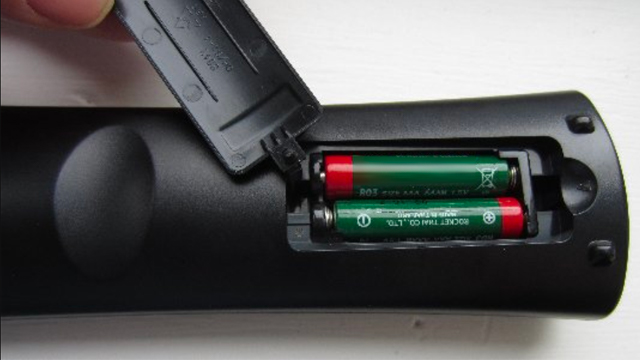
- Premium Battery Replacement: Swap out your existing batteries for a fresh set of high-quality alkaline cells. Avoid mixing brands or using half-depleted cells. Weak batteries are statistically the single highest cause of intermittent transmission failures and failed Bluetooth connections.
- Clear Line of Sight (IR Models Only): Legacy non-Bluetooth BT and YouView remotes communicate exclusively via Infrared (IR) light waves. Ensure absolutely no structural blockages, media consoles, or ornaments are obstructing the pathway between the front edge of the handset and the box’s dedicated IR receiver window (the glossy square panel located on the front of the hardware casing).
- The 30-Second Hard Power Cycle: Power glitches in the main mainboard can cause the receiving wireless module to lock up entirely. Unplug the main power adapter of your BT/EE TV box directly from the wall outlet. Wait a full 30 to 45 seconds to thoroughly discharge the internal capacitors, then reattach the power cord and allow the operating system to complete a cold reboot sequence.
- Isolate TV Energy Saving Settings: Modern Smart TVs frequently integrate aggressive “Energy Saving” or “Eco Mode” lighting presets that alter backlighting arrays. In rare operational profiles, the specific light frequency emitted by these screens can emit ambient noise that directly blinds delicate legacy Infrared sensors on nearby external hardware boxes. Try temporarily disabling these modes within your television panel settings menu to rule out interference.
How to Reset and Re-pair Your BT / EE Remote (By Exact Model)
If the foundational checklist fails to yield positive results, the logical next phase dictates clearing the smart remote’s onboard volatile cache memory. Over time, internal firmware stack loops can render the handset unresponsive until a hard hardware reset sequence is correctly registered. Find your exact device iteration highlighted below to begin:
1. For BT TV Box Pro / EE TV Box Pro (Smart Bluetooth Remotes)

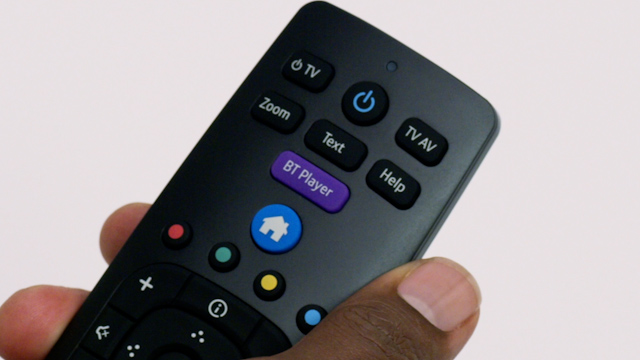
If your remote features a high-contrast purple “Home” icon button, you are operating a modern Bluetooth-enabled device. This unit communicates natively through radio frequencies rather than direct line-of-sight visual pathways, allowing it to control setups tucked inside structural cabinets. However, the initial cryptographic “handshake” can occasionally break down.
The Hard Factory Reset Step: Firmly press and hold down both the Home and the 9 buttons on the face of the remote control simultaneously.
- The Visual Confirmation Signal: Maintain continuous pressure on both buttons until you observe the status LED light configuration wrapped closely around the integrated BT/EE logo flash precisely three consecutive times. Depending on your exact hardware revision batch, this flashing light sequence will glow either a vibrant Purple or a distinct Aqua (Light Blue/Green) shade. This flash verifies that internal memory stacks have reverted cleanly to production defaults.
- The Re-pairing Sequence: Following a clean reset, the smart remote should attempt to dynamically link back up with the parent console unit on its own. If automated processes stall, point the handset straight toward your active TV box frame and simultaneously press and hold the Home and 7 keys. Continue holding until the status LED flashes an unmistakable solid Blue colorway, confirming an established secure channel link.
2. For Older BT YouView Boxes (Standard Infrared Handsets)
Older set-top box installations generally rely on basic legacy IR infrastructure. If your remote does not feature a dedicated colored home symbol or fails to interact with hidden boxes, clear its physical command table manually:
The Infrared Reset Step: Simultaneously press down and hold the Home and the 7 buttons together.
- The Visual Confirmation Signal: Hold the button configuration steadily until you see the top LED signal light cycle through exactly three distinct Blue visual pulses.
- The Re-pairing Sequence: Unlike modern variants, an IR unit requires zero active digital pairing protocols because it continuously broadcasts raw light instructions. Simply point the handset cleanly at the set-top console box to verify that default operations have fully restored.
Pro-Tip for Rigid Legacy Standard Remotes: If your older non-responsive standard model remains stuck after the above protocol, perform an advanced “Hard System Reset”. Hold down the AD, SUB, and BT Player options concurrently for 5 full seconds. Keep watching for the blue indicators to flash, clearing stubborn residual control loops.
Advanced Troubleshooting: Navigating Beyond the Basic Reset
When executing a thorough peripheral hardware reset leaves your BT box completely unresponsive to remote navigation, the core operational failure point likely rests within the primary system software stack or the underlying hardware synchronization settings. Implement the specialized procedures documented below to restore regular ecosystem flow:
The Lost Remote Beep Trick (WPS Smart Feature)
Unbeknownst to many users, the premium EE/BT TV Box Pro hosts an integrated troubleshooting feature designed to test hardware integrity. Navigate to the physical side or rear panel of your main set-top box and briefly press the mechanical WPS / Pairing button for exactly one single second.
If your Bluetooth remote control retains a functional internal logic board and battery power, it will immediately respond by sounding a high-pitched audible chirping sound. If it beeps but fails to move menus, you know with absolute certainty the issue is purely a software pairing mismatch rather than physical liquid damage or a broken mainboard.
Correcting Smart TV Volume & Power Sync Failures
A highly prevalent symptom reported across technical forums involves an asymmetric failure mode: the remote comfortably manipulates box menus, but the integrated TV power toggle and master volume controls fail to respond. This occurs when the remote’s CEC programming matrix drops its secondary TV-specific manufacturer profiles.
To reprogram this feature cleanly without losing standard menu control, utilize the mechanical buttons situated along the physical casing of your TV box console to access the internal OS pipeline. Manually path your way forward to:
$$\text{Settings} \rightarrow \text{Connected Devices} \rightarrow \text{Bluetooth Remote} \rightarrow \text{Control Volume and Source}$$
From this sub-menu matrix, re-select your specific television brand profile (e.g., Samsung, LG, Sony) to safely push the proper operational infrared synchronization frequencies down to your smart handset peripheral.
Resolving HDMI-CEC Conflict Issues
Sometimes, your Smart TV’s universal remote settings conflict with the BT/EE box pairing matrix. If your TV remote suddenly controls the box but the BT remote stops working, go to your TV’s System Settings, locate HDMI-CEC (called Anynet+ on Samsung, SimpLink on LG, or BRAVIA Sync on Sony), and toggle it OFF and back ON. This forces the HDMI ports to refresh their hardware handshake pathways.
Forced Manual Firmware Update via Console Controls
Outdated system software on your set-top box can induce a persistent “handshake failure,” denying new pairing protocols entirely. To eliminate this issue, force an instantaneous firmware pull using console controls:
- Locate the mechanical navigation buttons mounted directly on the front or side framework of your physical BT/EE box unit.
- Carefully cycle through the active user interface to locate the Settings icon dashboard.
- Advance down deep into the infrastructure sub-trees by selecting Device Management, followed by Software Update.
- Select Check Now to pull any available urgent platform patches down from the central EE servers. Allow the device to fully complete its internal update cycle, as this frequently resolves deeply embedded communication driver bugs instantly.
Comprehensive Device Compatibility Matrix
| Hardware Model Name | Primary Connection Mode | Reset Button Combo | LED Flashing Indicator Codes |
| BT TV Box Pro / EE TV Box Pro | Bluetooth Smart Wireless | Home + 9 (Reset) / Home + 7 (Pair) | Triple Purple or Aqua Flash / Solid Blue |
| EE TV Box Mini / Edge Variant | Bluetooth Smart Wireless | Home + 9 (Reset) | Triple Aqua Cyan Flash Indicator |
| Legacy YouView G4 & G5 Boxes | Infrared (Direct Line of Sight) | Home + 7 Sequence | Triple Blue LED Top Flash Indicator |
| Standard BT Legacy Handset | Infrared (Direct Line of Sight) | AD + SUB + BT Player (5 Sec) | Instant Flash Blue Top Loop |
The Digital Mobile App Remote Alternative
If you find yourself stuck waiting for a physical replacement kit to ship from fulfillment centers, you can easily deploy a seamless digital bridge to handle your immediate television needs. Turn your mobile device into a virtual control deck:
Navigate straight to your mobile operating system’s native marketplace to download the official EE TV Application (historically labeled inside older legacy search store tags as the traditional BT TV App) available for iOS and Android deployments. To establish complete functionality, ensure your smartphone or tablet device is logged onto the identical local home Wi-Fi subnet architecture as your set-top television box unit.
Once connected, the app auto-discovers your local television console hardware, providing an interactive virtual touch remote control that completely bypasses physical hardware constraints.
When to Contact Official EE / BT Customer Support Channels
When extensive systematic troubleshooting loops yield zero forward progress, specific physical markers point to total structural hardware failures that require complete component replacement. Keep a sharp eye out for these explicit failure indicators:
- The Front Panel Red Light Alert: A persistent, non-blinking red or amber indicator light visible on the face of the console box typically signals an internal hardware motherboard failure or a critically corrupted boot partition.
- Total Symmetrical App Input Failure: If the official digital mobile app control option also fails to interact with the box despite being confirmed on the identical Wi-Fi network, the internal wireless receiver card inside the box frame is likely fried.
Keep in mind that standard BT and EE contract operations generally supply user set-top box equipment under strict long-term equipment loan guidelines. If a critical internal component fails through regular wear and tear, customer service operators will process and dispatch a complete physical hardware replacement kit entirely free of charge. Avoid buying generic universal third-party remotes online; they lack the crucial proprietary Home and subsystem shortcut architecture keys required to parse advanced operational sub-menus safely.
Conclusion
Wrestling with a BT box not responding to remote inputs is a frustrating hurdle, but it is rarely a terminal issue. By methodically stepping through foundational hardware checks, executing localized Bluetooth resets, or leaning on the official app setup, you can reliably restore total system control without waiting for a field technician. Keep this diagnostic manual close by to ensure you always maintain total command over your home entertainment system.
Frequently Asked Questions
Why is my BT box not responding to the remote even with brand-new batteries installed?
This state points directly to a broken cryptographic software pairing connection rather than a power issue. When a smart Bluetooth remote drops its internal connection profile, it continues to broadcast blind signals that the box can no longer read. Simply execute a complete system memory clear by holding down the Home and 9 keys until the visual pulse pattern triggers, then manually re-pair via the Home and 7 protocol to restore connection.
How can I quickly determine if my physical BT remote handset is completely broken?
You can easily execute a diagnostic test using any smartphone camera lens. Infrared light waves are completely invisible to the naked human eye but are easily captured by digital image sensors. Point the top emitter tip of your legacy IR remote directly into your smartphone’s front-facing camera lens while mashing buttons. If you look closely at your phone screen and see no faint flashing pink or purple light pulses, the internal hardware board is completely dead and requires total replacement. For newer Bluetooth variants, a total absence of an LED light response after a Home + 9 hold indicates structural hardware failure.
What does a flashing purple or aqua light code represent on my BT remote?
A flashing purple or aqua light sequence indicates that the remote’s onboard system software has completely cleared its residual pairing history and is actively broadcasting an open pairing signal. It serves as visual confirmation that the peripheral hardware, logic chip, and battery power loops are operating perfectly.
Will executing a factory reset on my BT box fix stubborn remote communication errors?
Yes, it can resolve deeper underlying software corruptions within the box operating system, but it should always be treated as a final, last-resort option. To execute this process, path carefully through Settings > Device Management > Factory Reset. When prompted by the system interface, be absolutely certain to select the explicit option labeled “Keep Recordings” to wipe the system files clean without accidentally deleting your entire library of stored personal content.
You may also read: Rally and Off-Road Driving Experience Wales: Conquer Challenging Terrain