A DNS server is a crucial part of your internet connection, translating domain names into IP addresses so your devices can access websites. When the DNS server stops responding, your internet may fail, websites may not load, and frustration can quickly build. Learning how to fix DNS server not responding ensures your devices stay connected and your browsing experience remains smooth.
This issue can happen due to network glitches, router problems, outdated drivers, antivirus interference, or incorrect DNS configurations. Knowing the right troubleshooting steps for Windows, Mac, mobile devices, and gaming consoles will help you quickly restore connectivity without unnecessary technical stress. This guide walks you through both quick fixes and advanced solutions in a clear, actionable way.
Quick Fixes to Resolve DNS Server Not Responding
Restarting your router, modem, and devices is the first step when addressing DNS errors. Power cycling your router for 30–60 seconds clears temporary network issues and resets your connection to your ISP’s DNS servers. Following this, restart your computer, Mac, or mobile device to ensure that network settings are refreshed and that your system communicates correctly with the DNS server.
Testing another browser or device can help identify if the issue is device-specific. Some DNS errors are caused by browser cache or cookies. Switching to a different browser or clearing your current browser’s cache often fixes the problem immediately. Similarly, checking your connection on another device helps determine if the DNS issue is network-wide or confined to one device.
Running built-in network troubleshooters is another effective solution. Windows users can use the Network Troubleshooter, which automatically detects issues and suggests fixes. Mac users can run Network Diagnostics to identify connectivity problems. These tools can save time and resolve many DNS errors without manual intervention.
Command Prompt Solutions for Windows
Windows users can take advantage of Command Prompt to resolve DNS server issues efficiently. Flushing the DNS cache with ipconfig /flushdns removes outdated or corrupt entries, allowing your computer to request fresh DNS information from the server. This step can often resolve connectivity issues caused by mismatched DNS data.
Releasing and renewing your IP address using ipconfig /release and ipconfig /renew is another effective fix. These commands refresh your network configuration, eliminating IP conflicts that may prevent your device from communicating with DNS servers.
For more advanced network troubleshooting, resetting the TCP/IP stack and Winsock using netsh int ip reset and netsh winsock reset restores essential networking components to default settings. Restart your PC afterward to ensure all changes take effect, effectively fixing persistent DNS server not responding errors on Windows.
Advanced DNS Fixes
Changing your DNS server to a reliable public provider is often a permanent solution. Google DNS (8.8.8.8 and 8.8.4.4) and Cloudflare DNS (1.1.1.1 and 1.0.0.1) are recommended for their speed and reliability. Updating your network adapter settings to these DNS addresses can improve connection stability and resolve recurring DNS errors.
Disabling IPv6 can prevent protocol conflicts that may trigger DNS issues. While IPv6 is widely supported, some networks and devices still experience errors with it enabled. Unchecking IPv6 in your network adapter properties allows your system to use the more reliable IPv4 connection.
Temporarily disabling antivirus, firewall, or VPN software may be necessary if they are blocking DNS communication. Security software can sometimes interfere with your network settings. Testing your connection with these programs turned off helps determine if they are causing the DNS server not responding error.
Updating your network drivers is another essential step. Outdated drivers can create compatibility issues that prevent proper DNS communication. Ensure your network adapter drivers are current by checking the manufacturer’s website or using Windows Device Manager to install the latest updates.
Device-Specific DNS Fixes
Windows 10 & 11
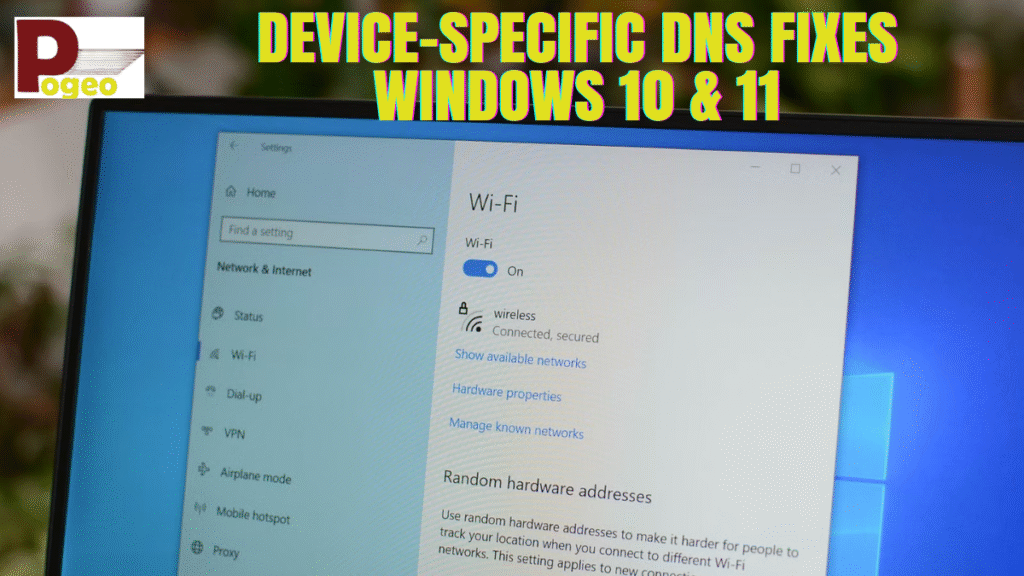
For Windows devices, using a combination of quick fixes, Command Prompt commands, and changing DNS settings usually resolves most issues. Make sure your network drivers are updated and check whether Safe Mode with Networking fixes the DNS error, which can indicate third-party software interference.
Mac
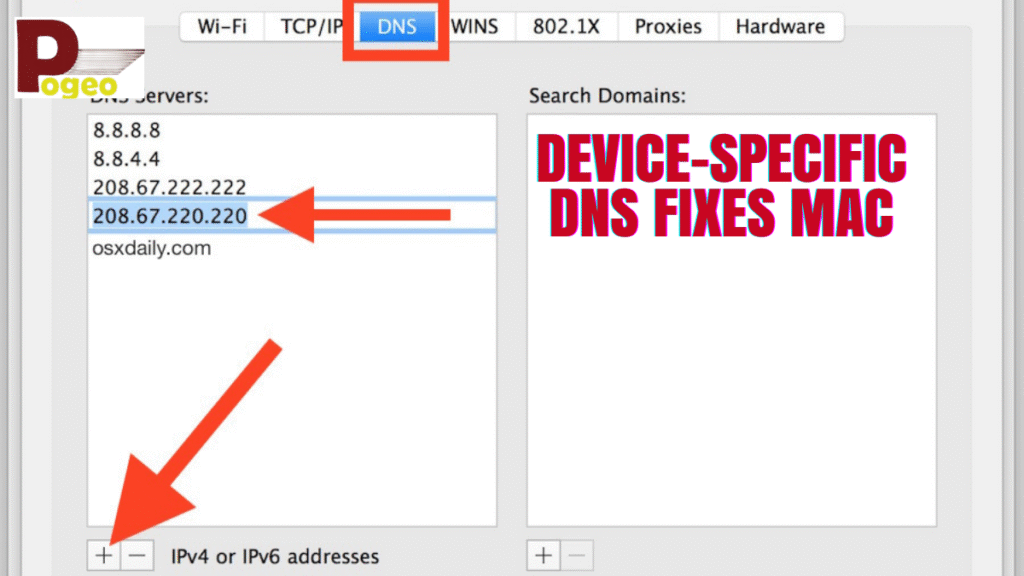
Mac users can flush DNS cache via Terminal using sudo killall -HUP mDNSResponder. Adjust DNS settings in Network Preferences to use Google or Cloudflare DNS for improved reliability. Restarting your Mac after applying these changes ensures the system uses the updated DNS settings.
Mobile Devices
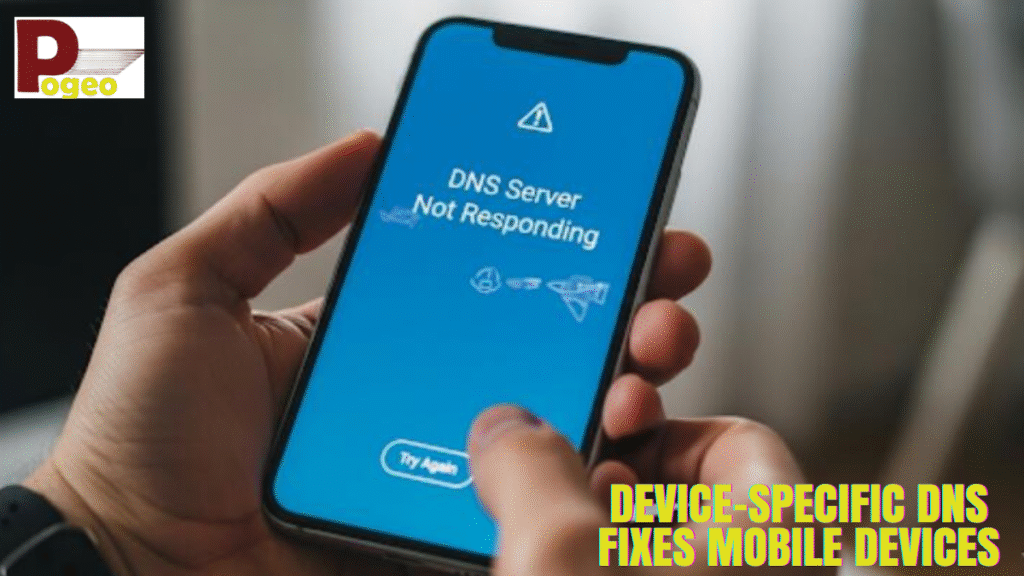
iOS and Android users can update DNS settings directly within their Wi-Fi network preferences. Restart your router and device afterward. Disabling VPN apps or security software temporarily can also help identify conflicts that prevent DNS communication.
Gaming Consoles

Consoles like PS4 and PS5 may experience DNS issues when connecting to Wi-Fi. Update the console network configuration with public DNS addresses, or switch to Ethernet for testing. Restarting the console after changes ensures that the new settings are applied correctly.
Wi-Fi and Ethernet Troubleshooting
DNS errors may sometimes appear only on a specific network type. Wi-Fi connections can suffer from interference, router misconfigurations, or weak signals. Testing an Ethernet connection can help determine whether the problem lies with your wireless network.
Updating your router firmware and checking DNS assignments within the router interface ensures that all devices communicate properly with DNS servers. Restarting your router and verifying DHCP settings can prevent recurring DNS server not responding errors.
Website-Specific DNS Issues
Occasionally, a DNS error occurs only when visiting a specific website. This usually indicates a domain-level problem, such as incorrect A records or delayed DNS propagation after recent changes. Waiting for DNS propagation or contacting the website administrator may be necessary. Understanding the difference between a network-wide issue and a website-specific problem helps prevent unnecessary troubleshooting steps
Conclusion
Understanding how to fix DNS server not responding errors allows you to maintain uninterrupted internet access across all devices. Quick solutions like restarting devices, switching browsers, or running troubleshooters solve most issues. Advanced steps, including changing DNS servers, disabling IPv6, updating drivers, and resetting the network stack, provide reliable fixes for persistent problems. Device-specific instructions ensure that Windows, Mac, mobile devices, and gaming consoles all stay connected efficiently.
FAQs
How can I reset my DNS server on Windows and Mac?
Windows users can use ipconfig /flushdns, while Mac users can run sudo killall -HUP mDNSResponder in Terminal to reset DNS cache.
Is 1.1.1.1 still the fastest DNS server?
Yes, Cloudflare DNS (1.1.1.1) remains one of the fastest and most secure public DNS servers, while Google DNS (8.8.8.8) is also highly reliable.
How to fix no DNS response on mobile devices?
Update DNS in Wi-Fi settings, restart your router and device, and temporarily disable VPN or security software if necessary.
How do I get my DNS server to respond on PS4 or PS5?
Set public DNS in your console’s network settings, restart the console, or switch to Ethernet to troubleshoot connection issues.
Why is my DNS server not responding only on one device?
Device-specific errors may arise from outdated drivers, corrupted DNS cache, or third-party software interference.
Can antivirus or firewall software cause DNS server issues?
Yes, some security programs may block DNS communication. Temporarily disabling them can help identify if they are causing the problem.
How do I flush DNS cache on Windows, Mac, and mobile devices?
Windows: ipconfig /flushdns, Mac: sudo killall -HUP mDNSResponder, Mobile: restart network or adjust DNS settings.
You may also read: Recent Changes: Merger of CCBC & CCMCC