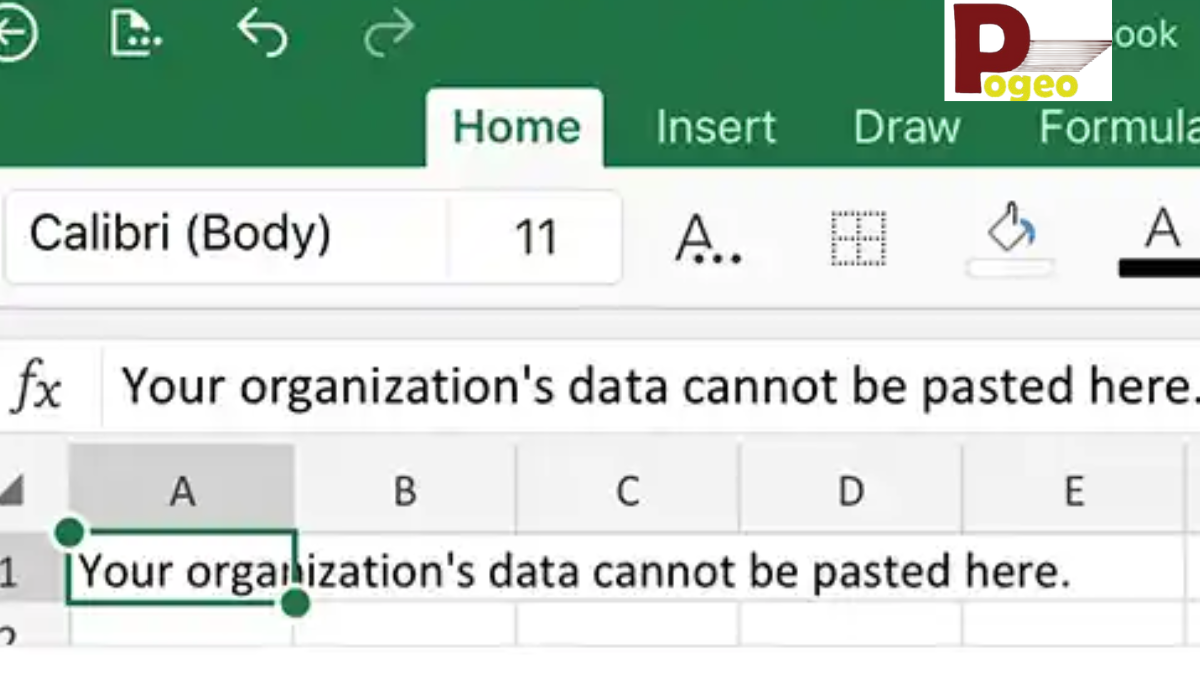
If you’ve ever tried copying information from a work application to a personal app and seen the message Your Organization’s Data Cannot Be Pasted Here., you are not alone. This error commonly appears in corporate environments where Microsoft Intune, Office 365, or Google Workspace enforce strict security policies. Its purpose is to prevent sensitive data from leaving approved applications, protecting your organization from accidental leaks or compliance violations. While it can disrupt your workflow, understanding the causes and solutions ensures you can continue working efficiently without compromising security.
This error can occur across a variety of apps, including Outlook, Word, Excel, Teams, and even browsers. Personal devices, mobile phones, and shared accounts can also trigger this restriction unexpectedly. Knowing whether the issue is policy-related or technical will help you apply the most effective solution.
What Does Your Organization’s Data Cannot Be Pasted Here. Mean?
The message Your Organization’s Data Cannot Be Pasted Here. indicates that a corporate security measure has blocked a copy-paste attempt. In many cases, Microsoft Intune’s application protection policies detect the transfer of sensitive corporate content from managed apps to unapproved apps. This ensures that confidential files remain secure and compliant with company regulations.
The error can also be triggered by device-specific or software issues. Outdated Office applications, temporary glitches, or corrupted files may mistakenly appear unsafe to your system, resulting in the same error. By identifying the root cause, you can determine whether a policy adjustment or a technical fix is needed.
Additionally, this error is not limited to Windows computers. Android and iOS devices, especially those connected to corporate accounts or using Outlook, can encounter restrictions due to mobile device management policies. Even browsers like Chrome or Edge can be affected when corporate policies limit clipboard actions.
Common Causes of Your Organization’s Data Cannot Be Pasted Here.
One of the most frequent causes of Your Organization’s Data Cannot Be Pasted Here. is corporate security policies. IT departments use tools like Microsoft Intune to enforce rules on how data moves between applications. These policies prevent employees from accidentally sharing sensitive information with unapproved apps, which is especially important for organisations that handle financial, legal, or personal client data.
Outdated software is another common factor. Older versions of Word, Outlook, Teams, or Excel may not fully comply with current security protocols, causing the system to block copy-paste attempts even within approved apps. Similarly, corrupted files or improperly formatted content can trigger the error, particularly when pasting tables, images, or data from external sources.
Device-specific restrictions can further complicate matters. Personal PCs linked to corporate accounts, shared Microsoft accounts, or cross-device features like Phone Link can override clipboard permissions. This may result in the Your Organization’s Data Cannot Be Pasted Here. message even when copying seemingly harmless content.
Quick Workarounds for Your Organization’s Data Cannot Be Pasted Here.
Several simple solutions can fix the Your Organization’s Data Cannot Be Pasted Here. error without requiring IT access. The most effective first step is to update all relevant apps, including Microsoft Office, Teams, and Outlook. Ensuring that your software is up to date often resolves compatibility issues with security policies.
Restarting your device can also clear temporary glitches. System or app updates may not fully apply until a reboot, and minor software conflicts are often resolved simply by restarting.
Another practical workaround is using Paste as Plain Text. Copy the content into a new plain text document or an unformatted Word file, then paste it into the target application. This removes any formatting that might trigger security restrictions. Additionally, closing apps that interfere with clipboard actions, such as Phone Link on Windows, can restore normal functionality.
Admin-Level Solutions for Your Organization’s Data Cannot Be Pasted Here.
Some instances require IT or admin intervention. Administrators can adjust Intune policies or Google Workspace settings to allow copying between approved apps while keeping sensitive data protected. Policy modifications might include enabling additional apps for clipboard operations or adjusting data transfer restrictions.
For Google Workspace users, admins may need to update data transfer settings that limit pasting, such as character limits or blocked apps. Logging into the Admin Console and configuring these settings ensures unrestricted access for approved workflows.
Device compliance checks are another critical step. IT may require users to remove corporate accounts from personal devices, clear app cache, or sync policies to ensure settings are applied correctly. Combining admin-level adjustments with user-side workarounds significantly reduces recurring errors.
Device-Specific Fixes for Your Organization’s Data Cannot Be Pasted Here.
Windows Devices
Windows 10 and 11 users may encounter this error due to clipboard or Office settings. Ensure all Office apps and the operating system are fully updated. Users should check permissions and remove any conflicting corporate accounts. Additionally, disabling clipboard history and cross-device sync often resolves the issue.
Android Devices
Android users may see this message when attempting to paste content from corporate apps to personal apps. Updating apps, disabling cross-device clipboard features, and signing out of work accounts typically resolve the problem. Using Paste as Plain Text can also bypass restrictions caused by formatting.
iOS Devices
iPhones and iPads may encounter restrictions in Outlook or other Office apps due to mobile device management policies. Disabling cross-device clipboard, updating apps, and separating personal and work accounts helps prevent the error. Ensuring the latest iOS updates are installed further improves compatibility with corporate policies.
Practical Scenarios Where the Error Occurs
Understanding real-world situations helps users identify and fix the error effectively:
- Copying a URL from Chrome to Teams: Clipboard sync with a work phone can override your PC clipboard, triggering the error. Closing Phone Link fixes this.
- Pasting complex Excel tables into WhatsApp: Formatting conflicts often cause the message. Using Paste as Plain Text is the simplest solution.
- Google Workspace restrictions: Copying text exceeding policy limits may be blocked. Admin adjustments are required for full access.
Including these examples ensures that users know how to handle both common and unusual triggers for the error.
Preventing Your Organization’s Data Cannot Be Pasted Here.
The best way to avoid this error is by keeping all apps and devices up to date. Regular updates ensure compatibility with corporate security policies and reduce the likelihood of accidental blocks.
Following corporate guidelines on approved apps and workflows also helps. Users should avoid third-party apps for corporate data and regularly review notifications from Intune or Google Workspace. Educating employees about best practices ensures a smooth workflow and prevents recurring errors.
Conclusion
The Your Organization’s Data Cannot Be Pasted Here. error is a security feature designed to protect sensitive corporate data. While it may disrupt your workflow, understanding its causes—from Intune policies and outdated software to device-specific restrictions—allows users and IT administrators to apply effective solutions. Quick workarounds, admin-level adjustments, and device-specific fixes ensure secure and efficient data management.
By following proper updates, adhering to corporate policies, and using approved applications, this error can be prevented. Users can maintain productivity while keeping company information safe and compliant.
FAQs
What does Your Organization’s Data Cannot Be Pasted Here. mean?
It indicates that corporate security policies or software restrictions are blocking copy-paste attempts outside approved apps.
Can I fix Your Organization’s Data Cannot Be Pasted Here. without IT access?
Yes. Updating apps, restarting devices, using Paste as Plain Text, or closing conflicting applications often resolves the issue.
Why does this error appear on Windows 11?
Clipboard restrictions, outdated software, cross-device syncing, or conflicting corporate accounts may trigger the message.
How can I resolve this error on mobile devices?
Update apps, disable cross-device clipboard, separate personal and work accounts, and use plain text pasting when necessary.
Does Google Workspace cause this error?
Yes. Admin-enforced data transfer policies, character limits, and blocked apps can prevent pasting. Admins can adjust settings in the Workspace Admin Console.
What is the 250-character limit error?
Some policies restrict pasted content to a maximum number of characters. Splitting content or updating policies resolves this.
Will clearing cache fix this error?
Yes. Clearing Office, Company Portal, or browser cache can remove temporary files that interfere with copy-paste actions.
Why does Phone Link interfere with pasting?
Cross-device clipboard sync with a corporate-connected phone can override your local clipboard. Closing the app usually fixes the problem.
Is Paste as Plain Text a permanent fix?
It is a reliable workaround for formatting conflicts but does not bypass policy restrictions. Admin adjustments are needed for permanent resolution.
You may also read: Criteria That Define the Most Powerful Doctors