Introduction
The internet has become an essential part of daily life, and any disruption can feel frustrating, especially when websites stop loading suddenly. One of the most common issues users face is the DNS error that prevents proper connection between a browser and the internet. This guide explains how to fix dns server not responding on Windows 10/11 in a clear and practical way so users of all skill levels can understand it easily.
The DNS system works like a phonebook for the internet, translating website names into IP addresses. When this system fails, browsers cannot load pages even if the internet connection appears active. Many Windows users encounter this issue due to network misconfiguration, router problems, or software conflicts. Understanding the root cause is the first step before applying effective solutions.
What Causes DNS Server Not Responding Error
There are several reasons why this error appears on Windows devices, and most of them are related to network instability or incorrect settings. One common cause is a weak or unstable internet connection that prevents the system from communicating with DNS servers properly. Router issues or temporary ISP downtime can also lead to this problem without warning.
Another major reason includes incorrect DNS configuration or outdated network drivers. Sometimes antivirus software or VPN services interfere with DNS requests, blocking access to websites. In rare cases, corrupted DNS cache or system glitches may also trigger the error. Learning how to fix dns server not responding requires identifying which of these causes is affecting your device.
Basic Fixes to Try First
Before moving to advanced solutions, simple troubleshooting steps can often resolve the issue quickly. Restarting your computer and router is one of the most effective methods because it clears temporary network glitches. Many users notice that their internet starts working again after a fresh reboot, especially when the issue is temporary.
Another basic step is checking whether other devices on the same network are working. If only one device is affected, the problem is likely local. Switching between Wi-Fi and Ethernet connections can also help identify whether the issue is related to wireless interference. These quick checks are often the first step in how to fix dns server not responding efficiently.
Step-by-Step Solutions for Windows 10/11
One of the most effective methods to resolve this issue is flushing the DNS cache. This can be done using Command Prompt with the command ipconfig /flushdns. It removes outdated or corrupted DNS records stored in the system. After performing this step, many users find their connection restored immediately.
Changing DNS server settings is another powerful solution. Using public DNS services like Google DNS or Cloudflare DNS improves speed and reliability. Google DNS uses 8.8.8.8 and 8.8.4.4, while Cloudflare uses 1.1.1.1 and 1.0.0.1. This adjustment is often recommended when learning how to fix dns server not responding because it bypasses ISP-related issues.
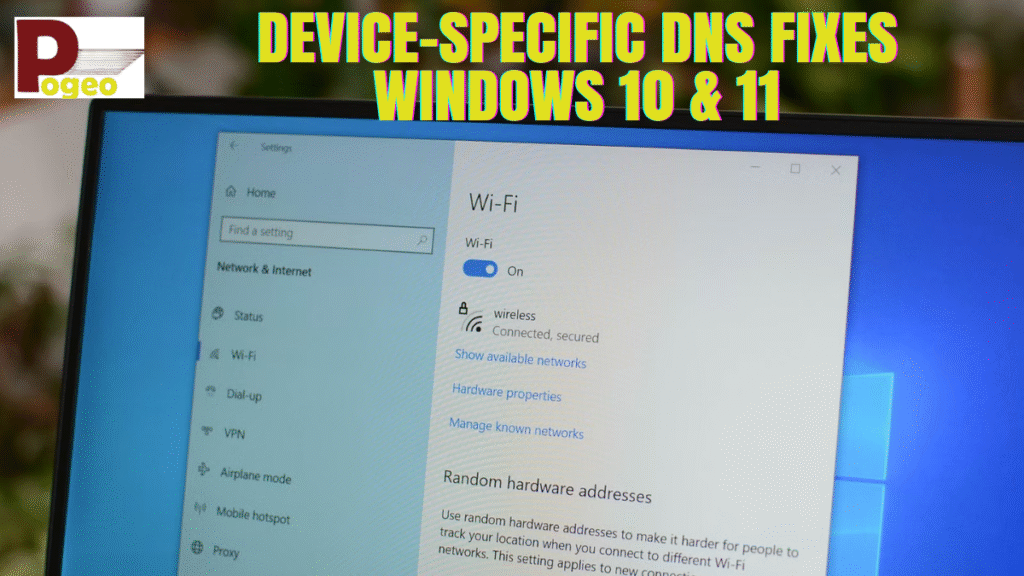
Updating or reinstalling network drivers is also important because outdated drivers can cause communication failures. Through Device Manager, users can update their network adapter or reinstall it entirely. Disabling IPv6 temporarily may also help in certain cases where compatibility issues occur.
VPNs, proxy settings, and antivirus programs sometimes interfere with network traffic. Temporarily disabling them helps identify whether they are the cause. Once disabled, users can test their internet connection to confirm whether DNS issues are resolved.
Advanced Troubleshooting Methods
If basic fixes do not work, advanced troubleshooting may be required. Windows has a built-in network troubleshooter that can automatically detect and repair connectivity issues. Running this tool often reveals hidden configuration problems that users may not notice manually.
Resetting the TCP/IP stack is another effective solution. Using commands like netsh int ip reset helps restore default network settings. Renewing the IP address also improves connectivity in cases where the system fails to communicate properly with DNS servers. These methods are essential when learning how to fix dns server not responding in persistent cases.
In some situations, checking router configuration is necessary. Accessing router settings and updating DNS manually can significantly improve performance. Restarting or resetting the router to factory settings may also eliminate hidden configuration errors.
How to Fix DNS Issues on Wi-Fi Networks
Wi-Fi connections are more prone to interference, which can trigger DNS errors frequently. One solution is repositioning the router to reduce signal obstruction. Walls, electronic devices, and distance can weaken signals and affect DNS performance, causing unstable browsing experiences.
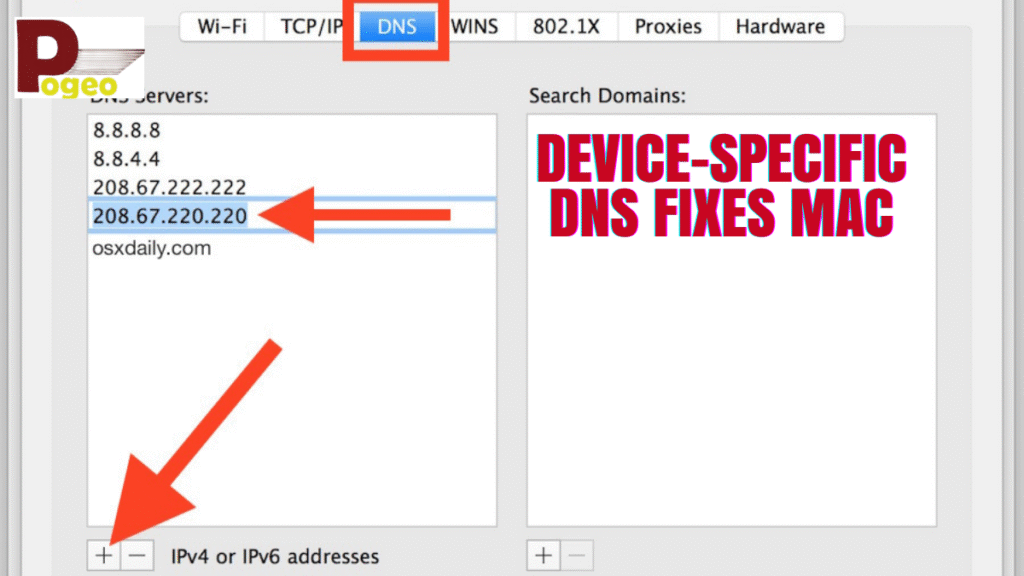
Another method involves changing DNS settings directly in the router instead of only the device. This ensures that all connected devices benefit from a stable connection. Many users searching for how to fix dns server not responding find that router-level configuration is more effective than device-level changes.
ISP and External Network Problems
Sometimes the issue is not caused by the user’s device at all. Internet Service Providers may experience outages or maintenance work that affects DNS resolution. In such cases, switching to mobile data or a hotspot helps confirm whether the issue is external.

If the connection works on mobile data but not on Wi-Fi, the ISP is likely responsible. Contacting the provider becomes necessary to resolve backend issues. Understanding this helps avoid unnecessary troubleshooting steps when learning how to fix dns server not responding.
Preventing DNS Errors in the Future
Preventing DNS errors involves maintaining a stable and updated network environment. Using reliable DNS providers like Google or Cloudflare ensures better speed and uptime. Regularly updating Windows and network drivers also reduces compatibility issues.

Restarting routers occasionally helps maintain performance and prevents cache buildup. Avoiding unnecessary VPN or proxy usage reduces the chance of interference. These preventive measures ensure smoother browsing and reduce the chances of needing to repeatedly fix DNS-related problems.
Conclusion
DNS errors can be frustrating, especially when they prevent access to important websites or online services. However, most cases can be resolved using simple and advanced troubleshooting techniques. By following the steps outlined in this guide, users can effectively understand how to fix dns server not responding and restore stable internet connectivity.
With proper configuration, updated drivers, and reliable DNS settings, this issue can be minimized or completely avoided in the future. Taking preventive steps ensures a smoother and more reliable browsing experience on Windows 10 and Windows 11 systems.
FAQs
Why does DNS server not responding error occur on Windows?
This error usually happens due to network issues, incorrect DNS settings, outdated drivers, or ISP problems that interrupt communication between your device and the internet.
What is the fastest way to fix DNS server not responding?
Restarting the router and computer, followed by flushing the DNS cache, is often the fastest method to restore internet connectivity.
Is changing DNS to Google or Cloudflare safe?
Yes, both Google DNS and Cloudflare DNS are safe, reliable, and widely used for improving speed and stability.
Can antivirus cause DNS issues?
Yes, some antivirus or firewall settings may block DNS requests, leading to connection errors until temporarily disabled.
Why does internet work on phone but not on PC?
This usually indicates a device-specific issue such as corrupted DNS cache, outdated drivers, or incorrect network settings on the PC.
How do I reset DNS settings completely?
You can reset DNS by using Command Prompt commands like ipconfig /flushdns and resetting network settings to default.
Will restarting router permanently fix DNS issues?
It may fix temporary issues, but persistent problems usually require changing DNS settings or updating drivers.
What is the best DNS server for gaming and browsing?
Google DNS and Cloudflare DNS are considered the best due to their speed, reliability, and low latency.
You may also read: Recent Changes: Merger of CCBC & CCMCC