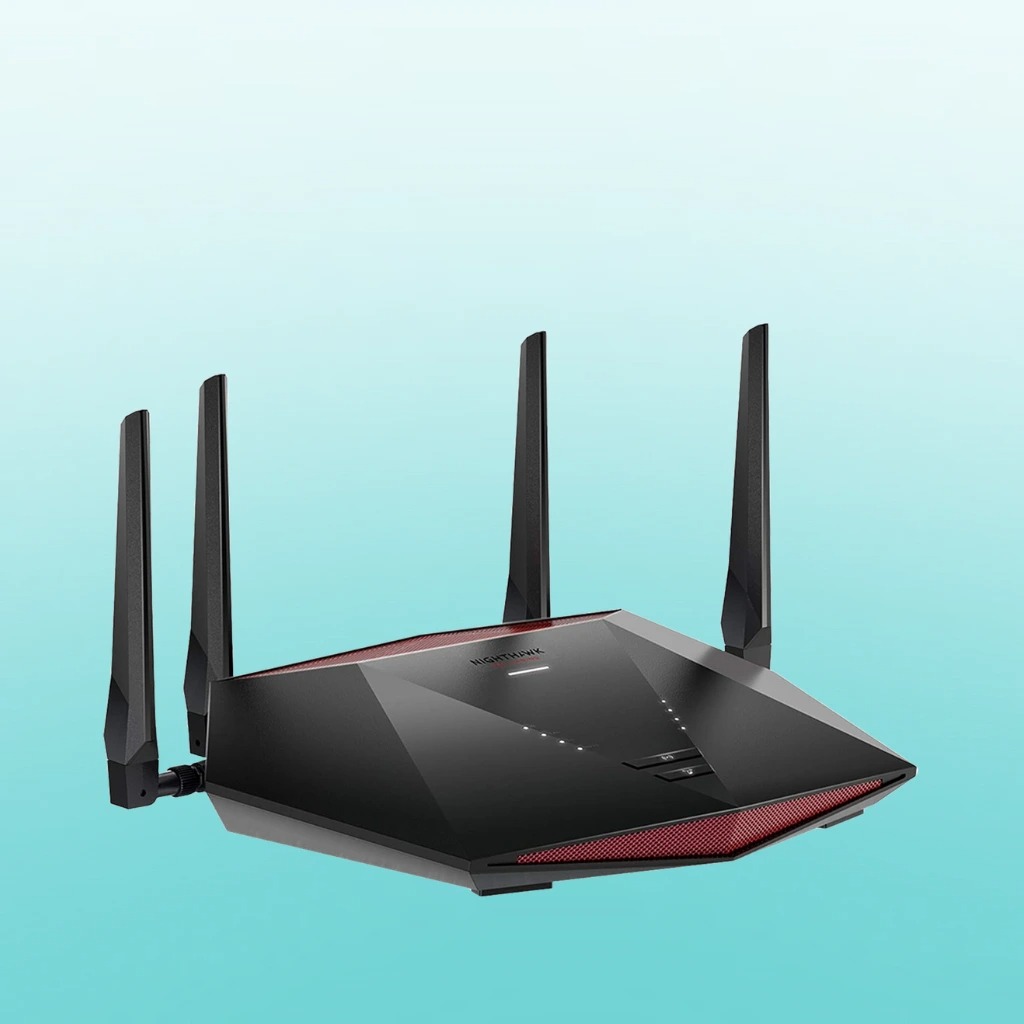
If you play online games, you already know how annoying lag and disconnections can be. But before you spend hundreds on a new router, there are a few simple tweaks you can try first. Sometimes, your current router can perform better with the right settings. This guide will walk you through what to check and adjust before deciding to upgrade that focusing on QoS, channels, and DFS.
Why You Should Tweak Before Upgrading
Buying a new router might sound like the easiest fix for bad internet performance, but it’s not always the smartest first step. Many routers, even older ones, can deliver great speeds and stable performance if they’re properly set up. Before spending extra money, you can start by checking and adjusting your current settings.
Here are a few reasons why tweaking first makes sense:
- It’s free and can instantly improve your connection.
- You’ll learn how your network actually works.
- You’ll know what to look for when you finally decide to upgrade.
Let’s go through the main tweaks you should focus on before making that upgrade decision.
Step 1: Update Your Router’s Firmware
Just like your phone or PC, your router needs updates to stay fast and secure. These firmware updates fix bugs, boost performance, and improve compatibility with newer devices.
To do this:
- Log in to your router’s admin page (usually found at 192.168.0.1 or 192.168.1.1).
- Check the “Firmware Update” section.
- Download and install the latest version available.
You’ll often notice better speed and fewer drops after a simple update.
Step 2: Optimize Router Placement
Before diving into complex settings, check where your router is placed. Many gamers overlook this part, but it plays a huge role in connection stability.
Tips for better placement:
- Keep your router in an open area, not hidden behind walls or inside cabinets.
- Place it in the center of your home if possible.
- Keep it away from microwaves or cordless phones that may cause interference.
This small change can instantly boost your Wi-Fi signal without spending a dime.
Step 3: Understand and Use Gaming QoS
Now let’s talk about one of the most powerful features in your router, Gaming QoS (Quality of Service).
Gaming QoS is a setting that prioritizes gaming traffic over other devices or apps. For example, if someone is streaming Netflix while you’re playing online, QoS ensures your game packets get top priority. This means smoother gameplay, reduced lag, and stable ping.
How to enable Gaming QoS:
- Log in to your router’s dashboard.
- Find the QoS settings (often under “Advanced” or “Traffic Control”).
- Enable it and select your gaming device as “High Priority.”
If your router has a special Gaming QoS mode, use that. Modern routers in 2025, especially gaming ones, come with automatic QoS profiles that recognize game servers and boost traffic automatically.
If you want a step-by-step guide with visuals and advanced examples, check out the TechWhoop full guide on router setup and gaming performance—it’s an excellent resource for gamers who want to push their routers to the next level.
Step 4: Channel Planning and Full Guide
Wi-Fi channels can get crowded, especially if you live in an apartment or shared space. When too many routers use the same channel, you’ll experience interference and slower speeds. This is where Channel Planning comes in.
Channel Planning and Full Guide means choosing the best wireless channel to avoid overlapping signals. For example, on the 2.4GHz band, channels 1, 6, and 11 are the best non-overlapping options. On the 5GHz or 6GHz bands, you can use tools or apps that scan for free channels.
Steps for effective channel planning:
- Download a Wi-Fi analyzer app on your phone or PC.
- Scan for nearby networks to see which channels are busiest.
- Go into your router settings and switch to a less crowded channel.
If you want to go deeper, check out a full guide on gaming QoS & channel planning. It explains how different routers handle data flow
Step 5: Explore DFS Channels for Better Wi-Fi
Another secret weapon for modern routers is DFS (Dynamic Frequency Selection). DFS channels are special Wi-Fi frequencies that most people don’t use because they require routers to detect and avoid radar signals.
However, newer routers handle DFS automatically, and the benefit is massive less congestion and higher speeds.
Why use DFS channels:
- Fewer neighboring routers are on these channels.
- They offer cleaner, stronger connections.
- Perfect for high-bandwidth gaming or streaming.
To enable DFS:
- Go to your router’s Wi-Fi or Channel settings.
- Choose a DFS channel (often marked as 52–144).
- Save your changes and restart your router.
If your router supports DFS, definitely use it. It’s one of the easiest ways to improve gaming performance without upgrading.
Step 6: Check for Bandwidth-Hogging Devices
Sometimes, your connection slows down because other devices in your home are using too much bandwidth. Smart TVs, streaming boxes, and phones that auto-update can drain your network.
Use your router’s admin page to check which devices are connected. If you see any that are downloading or streaming heavily, limit their speed using QoS rules. That way, your gaming PC or console always stays on top.
Step 7: Adjust MTU and DNS Settings
For advanced users, tweaking MTU (Maximum Transmission Unit) and DNS (Domain Name System) can also help.
- MTU: Setting this correctly prevents packet loss. Try 1472 or 1492 for best results.
- DNS: Switching to faster DNS servers like Google (8.8.8.8) or Cloudflare (1.1.1.1) can reduce latency when connecting to game servers.
These settings won’t turn bad internet into great internet, but they do make things smoother and more responsive during gameplay.
Step 8: Test Your Ping and Latency
After tweaking your settings, you should test your connection to see the results. Use online tools like Speedtest or PingPlotter to check your ping, download, and upload speeds.
A good gaming connection usually has:
- Ping under 30ms
- Stable jitter (less than 5ms difference)
- Consistent upload and download speeds
If your results improve after tweaking, you’ve just saved yourself the cost of a new router.
When It’s Time to Upgrade
If you’ve tried everything and your connection still struggles, then it might be time to upgrade. Look for routers that support Wi-Fi 6E or Wi-Fi 7, have built-in Gaming QoS, and offer DFS channel support.
Modern gaming routers in 2025 also come with features like AI-powered optimization, automatic channel planning, and mobile apps that help you control everything easily.
Conclusion
Before you rush to buy the latest gaming router, remember: sometimes all you need are the right tweaks. Updating firmware, using DFS, setting up gaming QoS, and smart channel planning can turn a laggy network into a stable one.
By doing this first, you save money and understand what features really make a difference. Only after testing should you decide to upgrade and when you do, you’ll know exactly what specs to look for.
Smooth gaming isn’t just about hardware; it’s about setup and smart optimization. So take a few minutes to adjust your settings such as your ping, teammates, and future self will thank you.