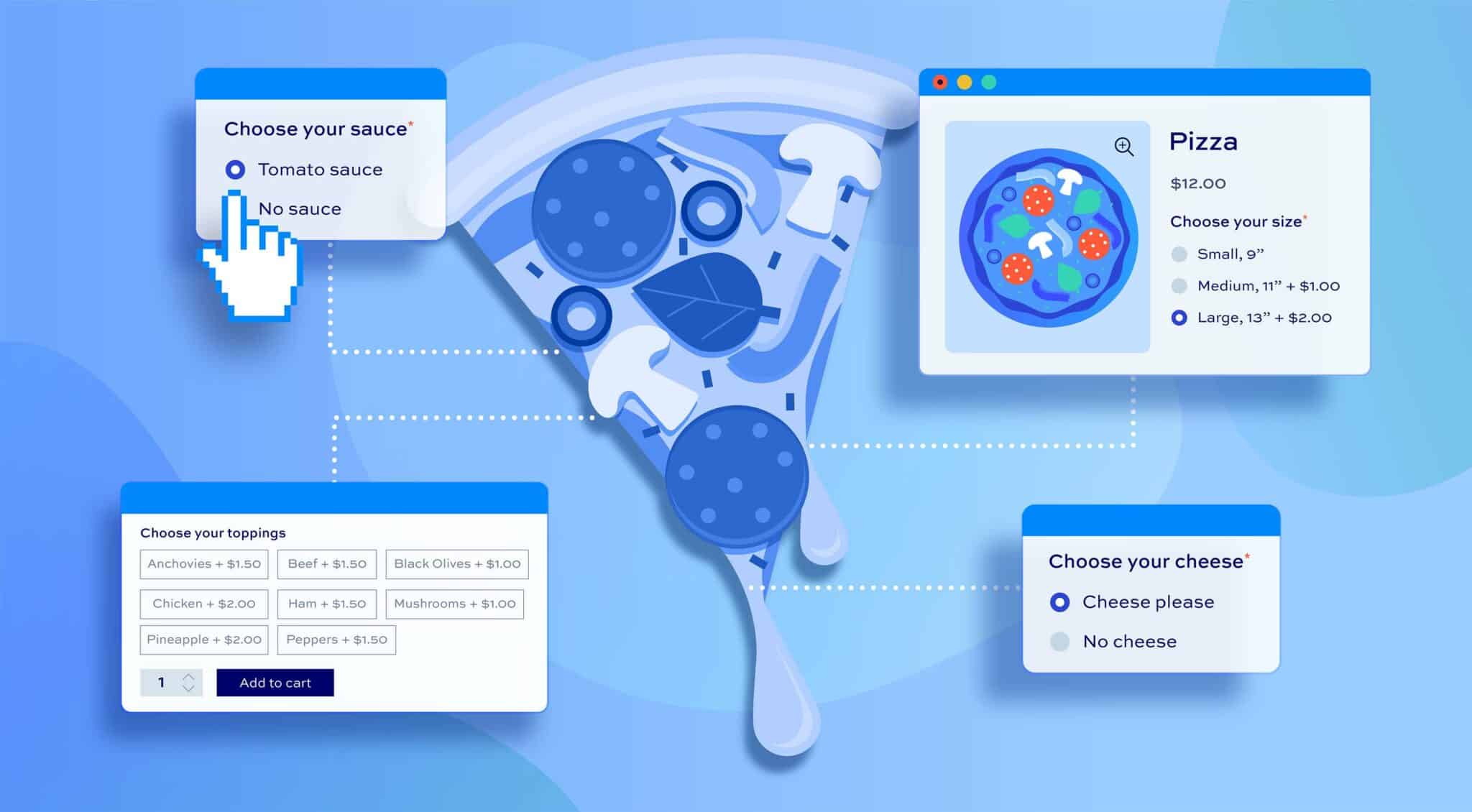
Offering interactive design options on your product pages can completely change how customers interact with your store. When they can tweak text or images or change colors or even upload their own files, it stops being just shopping and becomes more like an experience, like something they are really part of. People love that.
Luckily, a product customization WooCommerce plugin can make all of this possible no coding required. A product designer for WooCommerce will handle all the technical stuff while you focus on creating fun options for your products.
Understanding Interactive Design Options
Interactive design options let customers make changes right on the product page. They can adjust text, upload images, add clipart, select shapes, change colors, and see it live without guessing. This works for t-shirts, mugs, phone cases, posters, anything that can be personalized, really. It feels like giving them a mini design studio on your website.
This can improve engagement because customers can see exactly what they are getting before they buy. It also often increases conversion because people feel confident about their choices, they feel in control, and that trust makes them more likely to complete the purchase.
Adding interactive features can also give your store a unique personality. It’s not just a transaction; it’s an experience, and people remember experiences more than simple purchases. If your product pages are dull and static, a buyer might leave quickly, but interactive options can keep them clicking around, exploring what they can make.
Why a Plugin Beats Custom Coding
You could try coding all this yourself but it gets messy fast. You have to handle image uploads, previews, responsiveness across devices, and every WordPress update could break your code. A product designer for WooCommerce fixes all of that. You get drag and drop tools, live previews, text fields, image uploads, clipart libraries, and everything works across desktop, tablet, and mobile.
Using a plugin also saves you time and headache. Even small mistakes in coding can cause a product page to break or a customer’s design to disappear before checkout. Plugins are built to manage all these details so you don’t have to worry. You just configure the templates, test them, and go. Plus, plugins often come with customer support so if something goes wrong you’re not stuck trying to debug yourself.
Setting Up Interactive Options Step by Step
Starting is usually simple. After installing the plugin first pick the product you want to make interactive maybe a shirt, mug, poster, or phone case. Then start adding design elements like text fields, image uploads, clipart, and shapes. Adjust the size, position, and style of each element. Make sure the live preview works properly on your product page.
Testing is key. Check how it works on phones, tablets, and desktops. Some designs look great on desktop but break on mobile. Adjust until it’s consistent. Publish it once everything works and then monitor how users interact. You can see which templates are most popular and tweak them to make them even better. Small improvements can make a big difference in engagement and conversions.
Best Practices for Interactive Design
Keep things simple. Group similar options together and provide clear instructions for image uploads like size, type, and format. Avoid overwhelming your customers with too many options at once. Sometimes a few well-chosen editable areas work better than offering every possible feature.
You can also use templates to speed up the process. Templates make it easy for customers to pick a base and then customize small parts rather than starting from scratch. It’s easier and less intimidating for them and often leads to more completed orders.
Comparing Interactive Options Across Plugins
Not all plugins are created equal. Some allow many fields, some limit templates, and some have advanced features like conditional fields, layered clipart, or real-time updates. Choosing the right product designer for WooCommerce is important. You want one that’s optimized for speed, responsive, and easy to manage.
Some poorly optimized plugins can slow your site down and ruin the user experience. Always check reviews and test plugins before committing, especially if you plan to use many interactive features across your store.
Troubleshooting Common Issues
Even the best plugin can have issues. Images may not upload correctly, previews may lag, or templates may misalign on mobile devices. Always test every template before publishing. Follow recommended image sizes and file limits. Providing a short guide for customers can also reduce confusion and prevent support emails.
Another common problem is conflicts with other plugins. If you see weird behavior, try disabling other plugins to isolate the issue. Most premium product customization WooCommerce plugins have documentation and support for these kinds of issues.
Tips for Making the Most of Interactive Design
Pay attention to analytics. See which products and templates are used the most. Optimize your templates based on what customers actually interact with. Keep adding new clipart, fonts, and features over time. This keeps your store feeling fresh and gives returning customers new things to play with.
Encourage social sharing. If customers are designing something fun or unique, let them share images of their creations on social media. This not only boosts engagement but also gives your store free exposure.
Wrapping It Up
Interactive options transform WooCommerce product pages into engaging experiences. A product designer for WooCommerce lets you add editable fields, live previews, and ready-to-use templates without any coding.
Customers get to make products their own and you get ready-to-go orders every time. Focus on usability, test everything thoroughly, and provide clear instructions for customers. These interactive design options can increase engagement, sales, and customer loyalty because buyers feel like they are part of the creation process, not just buying something off a shelf.

